很多用户都知道微软在Win10系统中自动为我们配备了虚拟机。在最新的Windows11操作系统中,也有,如果用户需要在电脑中安装Android应用程序,下面的小边将带您看看如何解决这个问题! Win11自带虚拟机使用方法 一、专业版Win11 1、首先通过开始菜单,进入“设置”。  2、在设置中点击左边的“应用”选项。
  3、然后在其中打开“可选功能”。
  4、在最下方相关设置中打开“更多Windows功能”。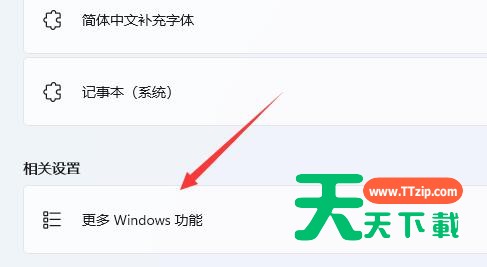
5、在其中勾选开启“Hyper-V”并点击确定保存即可。 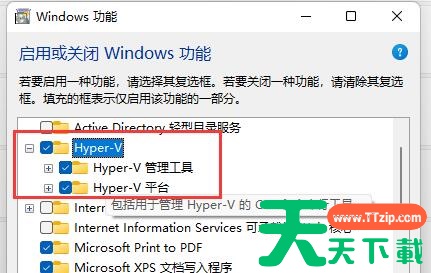 二、家庭版Win11 1、右键桌面空白处,选择新建一个“文本文档”。
 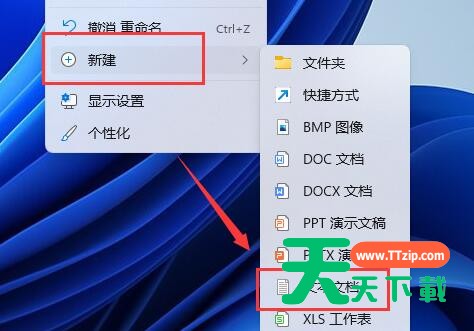 2、在其中输入以下命令。 pushd “%~dp0” dir /b %SystemRoot%servicingPackages*Hyper-V*.mum 》hyper-v.txt for /f %%i in (‘findstr /i 。 hyper-v.txt 2^》nul’) do dism /online /norestart /add-package:“%SystemRoot%servicingPackages%%i” del hyper-v.txt Dism /online /enable-feature /featurename:Microsoft-Hyper-V-All /LimitAccess /ALL pushd “%~dp0” dir /b %SystemRoot%servicingPackages*Hyper-V*.mum 》hyper-v.txt for /f %%i in (‘findstr /i 。 hyper-v.txt 2^》nul’) do dism /online /norestart /add-package:“%SystemRoot%servicingPackages%%i” del hyper-v.txt Dism /online /enable-feature /featurename:Microsoft-Hyper-V-All /LimitAccess /ALL
@天天绿软

天天绿软 - 分享免费电脑工具_手机APP_Mac软件推荐及热门教程攻略
天天绿软专注于提供高质量免费软件资源下载,涵盖Windows软件、 安卓应用、Mac工具、办公软件及系统优化工具。 我们为用户精选实用、安全、无广告的软件,并提供详细使用教程与评测内容。 每日更新热门软件排行榜、装机必备工具及效率提升软件, 致力于打造一个值得信赖的软件资源平台。